Wizard
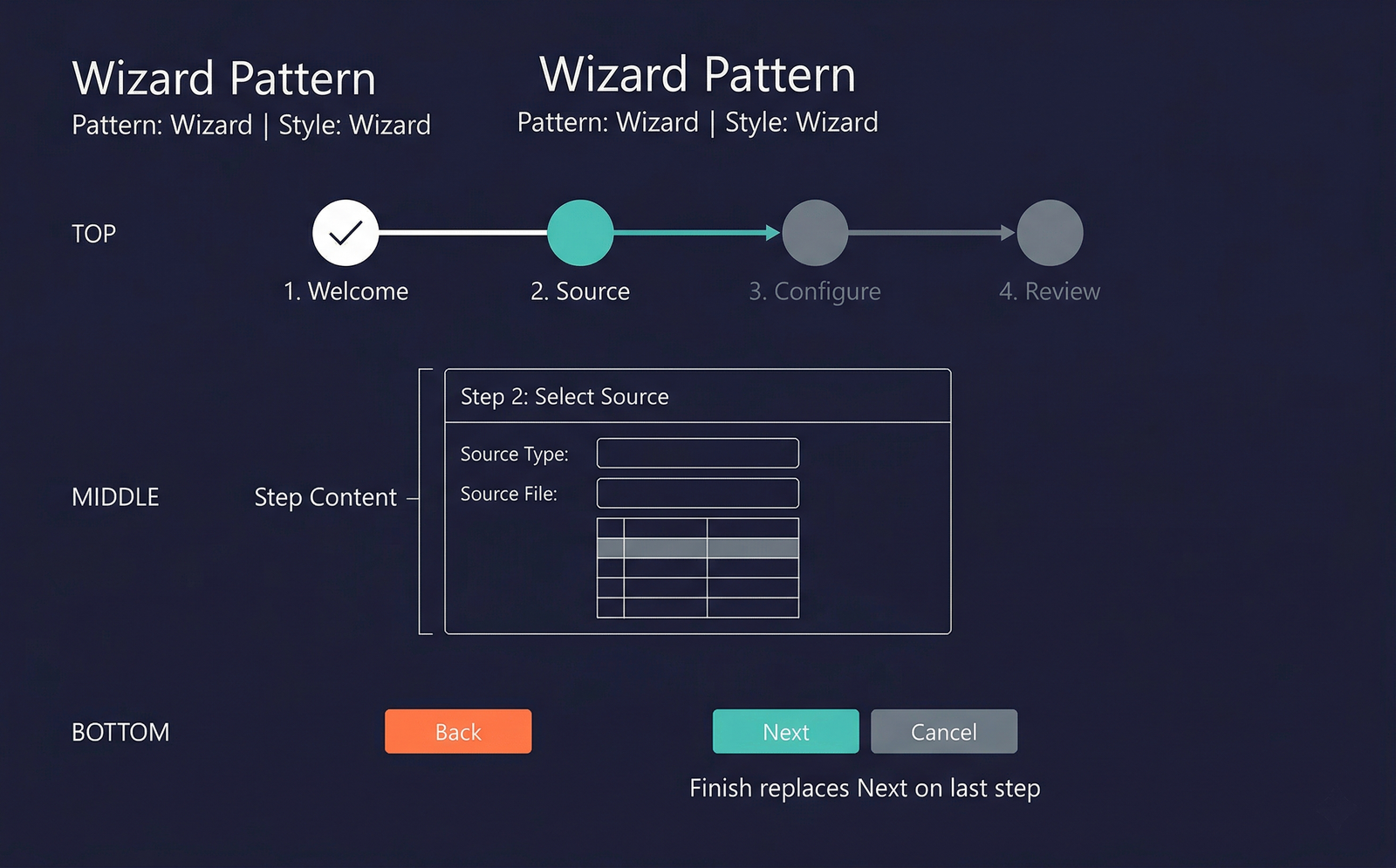
The Wizard pattern implements a multi-step guided process form. Each step is presented on its own page with Back, Next, and Finish navigation buttons. Wizards are appropriate when a task has a natural sequential flow where the user must complete one stage before proceeding to the next.
When to Use
- A process has a clear sequence of steps that must be completed in order.
- Each step collects a distinct set of inputs or displays progress/previews.
- The user needs guidance through a complex or infrequent process.
- There is a logical start, middle, and end — the wizard culminates in a final action (create, import, configure).
- Examples: setup wizards, data import wizards, configuration assistants.
Variations
The Wizard pattern does not have formally named sub-variations. However, individual wizard steps may use different subpatterns for their content:
- Fields and Field Groups — for parameter-entry steps.
- Grid — for steps that let the user select records from a list.
- Summary / Confirmation — a final step showing a read-only summary before commitment.
Key Components
| Component | Control Type | Required | Description |
|---|---|---|---|
| Wizard Header | AxFormGroupControl | No | An optional header showing the wizard title and a step indicator (e.g., "Step 2 of 4"). |
| Steps (Tab Control) | AxFormTabControl | Yes | A tab control where each tab page represents one step. The framework hides the tab headers and uses the navigation buttons to advance between pages. |
| Step Content | AxFormTabPageControl | Yes | Each tab page contains the controls for that step — fields, grids, static text, or summary information. |
| Navigation Buttons | AxFormButtonGroupControl | Yes | Back, Next, Finish, and Cancel buttons. The framework manages visibility (e.g., Back is hidden on step 1, Finish replaces Next on the last step). |
Example Forms in D365 F&O
| Form | Menu Item | Description |
|---|---|---|
DMFWizard | Workspaces → Data management → Import / Export | The Data Management Framework import/export wizard. Guides the user through selecting a data project, mapping fields, configuring options, and executing the import or export. |
SysCompanyWizard | System administration → Setup → Create company wizard | Walks through creating a new legal entity step by step — company ID, name, address, chart of accounts selection. |
NumberSequenceWizard | Organisation administration → Number sequences → Number sequences → Generate | A wizard that auto-generates number sequences for a module. Steps include selecting references, setting formats, and previewing results. |
LedgerConsolidateWizard | General ledger → Periodic → Consolidate → Consolidate Online | Consolidation wizard that steps through selecting source companies, accounts, and consolidation options. |
Infographic Placeholder