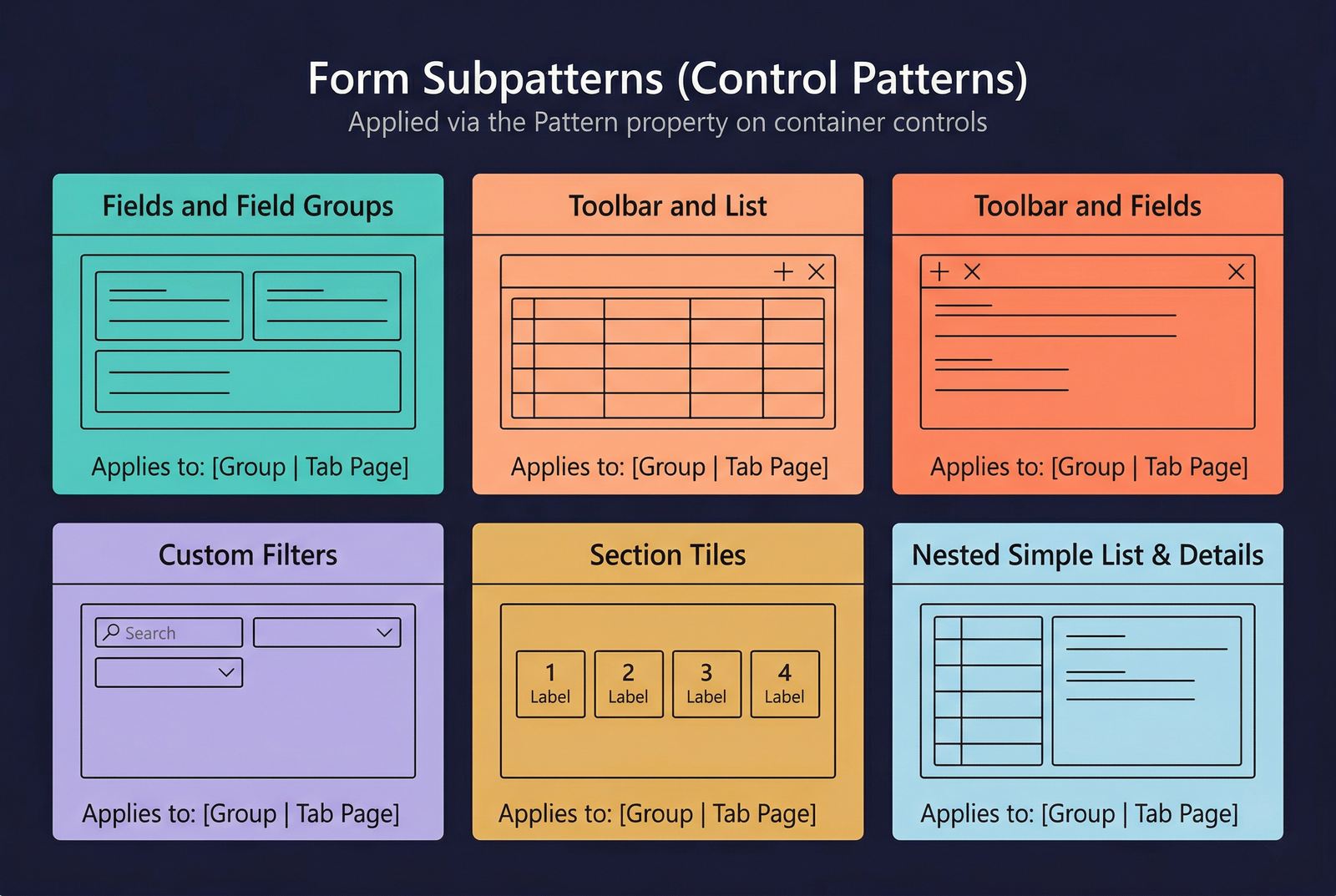
Subpatterns
Subpatterns (also called control patterns) are patterns applied to individual container controls — groups, tab pages, and other controls that have children. While a form-level pattern defines the overall structure of the form, subpatterns define the expected child-control structure inside a specific region.
Every container control inherits the Pattern and PatternVersion properties from AxFormControl. When a subpattern is assigned to a container, the Best Practice checker validates that the controls inside that container match the subpattern's specification.
Why Subpatterns Exist
Form-level patterns specify the top-level skeleton (Action Pane → Header → FastTabs → Grid), but they do not dictate what goes inside each FastTab or group. Subpatterns fill that gap:
| Concern | How Subpatterns Help |
|---|---|
| Inner structure | Specify the expected control arrangement inside a group or tab page. |
| Reuse | The same subpattern (e.g., Fields and Field Groups) is reused across hundreds of FastTab pages. |
| Validation | The compiler can validate inner containers independently of the outer form pattern. |
| Consistency | Groups that use the same subpattern render identically regardless of which form they appear on. |
Applying a Subpattern
In the AOT, select a container control (e.g., a AxFormGroupControl or AxFormTabPageControl) and set its Pattern property to the desired subpattern name. The framework then validates the child controls of that container.
Properties (from AxFormControl)
| Property | Display Name | Type | Description |
|---|---|---|---|
| AxFormControl (inherited by all controls) | |||
| Pattern | Pattern | String | The name of the subpattern applied to this container control (e.g., FieldsAndFieldGroups, ToolbarAndList). |
| PatternVersion | PatternVersion | String | The version of the subpattern specification. |
| Type | Type | FormControlType | The control type. Subpatterns are typically applied to Group, TabPage, or Tab controls. |
| Name | Name | String | The name of the control element. |
Common Subpatterns
Fields and Field Groups
The most widely used subpattern. Arranges input fields and field groups in a responsive multi-column layout. The framework automatically wraps fields into columns based on available width.
Applies to: Group, Tab Page
Expected children:
Scenarios:
- Inside any FastTab page on a Details Master or Details Transaction form.
- Inside the content panel of a Simple Details form.
- Inside the detail area of a Simple List and Details form.
Example: The "General" FastTab on the CustTable form uses Fields and Field Groups to arrange Customer group, Currency, Payment terms, and other fields.
Toolbar and List
Places an action toolbar above a grid or tree control. The toolbar contains buttons for actions that operate on the list below it (Add, Remove, Move Up, Move Down, etc.).
Applies to: Group
Expected children:
Scenarios:
- Inside a Details Transaction line section (toolbar above the lines grid).
- Inside a FastTab that embeds a secondary record list with its own actions.
- Setup forms where a group contains a list that can be independently managed.
Example: The lines section of the PurchTable (purchase order) form uses Toolbar and List for the Add line / Remove line toolbar above the order lines grid.
Toolbar and Fields
Similar to Toolbar and List, but places fields below the toolbar instead of a grid. Used when an editable section of a form has its own context-specific action buttons.
Applies to: Group
Expected children:
Scenarios:
- A detail region that needs its own action buttons above the fields.
- Line-details sections with per-line actions.
Custom Filters
Defines a filter bar with a Quick Filter control and optional custom filter fields (dropdowns, date pickers). Placed above a grid or list.
Applies to: Group
Expected children:
Scenarios:
- Above the grid on a List Page form.
- Above the navigation list on a Details Master form.
- Above any embedded grid that benefits from filtering.
Example: The filter bar above the grid on the SalesTableListPage form uses Custom Filters to provide Quick Filter plus Status and Date Range filters.
Filters and Toolbar
A compound subpattern that combines Custom Filters and an action toolbar in a single region. The filter controls appear first, followed by a toolbar with action buttons.
Applies to: Group
Expected children:
Nested Simple List and Details
Embeds a complete Simple List and Details layout inside a tab page of a parent form. The tab page contains a list grid on the left and a details panel on the right, following the same structure as the top-level Simple List and Details pattern.
Applies to: Tab Page, Group
Expected children:
Scenarios:
- A FastTab inside a Details Master form that manages a one-to-many child entity (e.g., the "Addresses" tab on a Customer master form).
Section Tiles
Arranges tile controls in a horizontal row. Each tile shows a count, amount, or KPI value with a label. Used exclusively in Workspace forms.
Applies to: Group
Expected children:
Scenarios:
- The "Summary" section at the top of a Workspace form.
Section Tabbed List
A tabbed container inside a workspace section. Each tab page contains a filtered grid showing a different view of pending work items.
Applies to: Group
Expected children:
Section Stacked Chart
A container for one or more chart controls stacked vertically within a workspace section.
Applies to: Group
Expected children:
Section Related Links
A container showing categorised hyperlinks to related forms, reports, and setup pages. Used in the "Links" section of a workspace.
Applies to: Group
Expected children:
Section Power BI
A container for an embedded Power BI tile or report within a workspace.
Applies to: Group
Expected children:
Subpattern Summary Table
| Subpattern | Typical Container | Key Children | Common Usage |
|---|---|---|---|
| Fields and Field Groups | Tab Page, Group | Field groups, fields | FastTabs, detail panels |
| Toolbar and List | Group | Action pane + Grid | Line sections, embedded lists |
| Toolbar and Fields | Group | Action pane + Fields | Editable sections with actions |
| Custom Filters | Group | Quick filter + filter fields | Above grids |
| Filters and Toolbar | Group | Filters + Action pane | List pages, filtered grids with actions |
| Nested Simple List and Details | Tab Page | List grid + Details panel | Child entities in FastTabs |
| Section Tiles | Group | Tile buttons | Workspace summary |
| Section Tabbed List | Group | Tab + Grids | Workspace operational lists |
| Section Stacked Chart | Group | Chart controls | Workspace analytics |
| Section Related Links | Group | Link groups + Menu item buttons | Workspace navigation |
| Section Power BI | Group | Power BI control | Workspace analytics |
Infographic Placeholder